Creating a Buildform Form
Welcome to Buildform! We're here to help you effortlessly create beautiful, conversational lead-generation forms that are not only engaging but also smart. With BuildForm, you can streamline your lead-capturing process while providing a personalised experience for your users, making it easier than ever to connect and grow your business.
Written By Dhanuka Sheyam
Last updated About 2 years ago
Pro Tip: You can try Buildform for FREE.
Please follow the steps below to get started:
Step 01 - Creating an Account on Buildform
Visit our website at buildform.ai or go directly to app.buildform.ai to create your free account. Once you're there, simply click the Build a Free Form button to get started right away.
Pro Tip: No Credit Card Required!
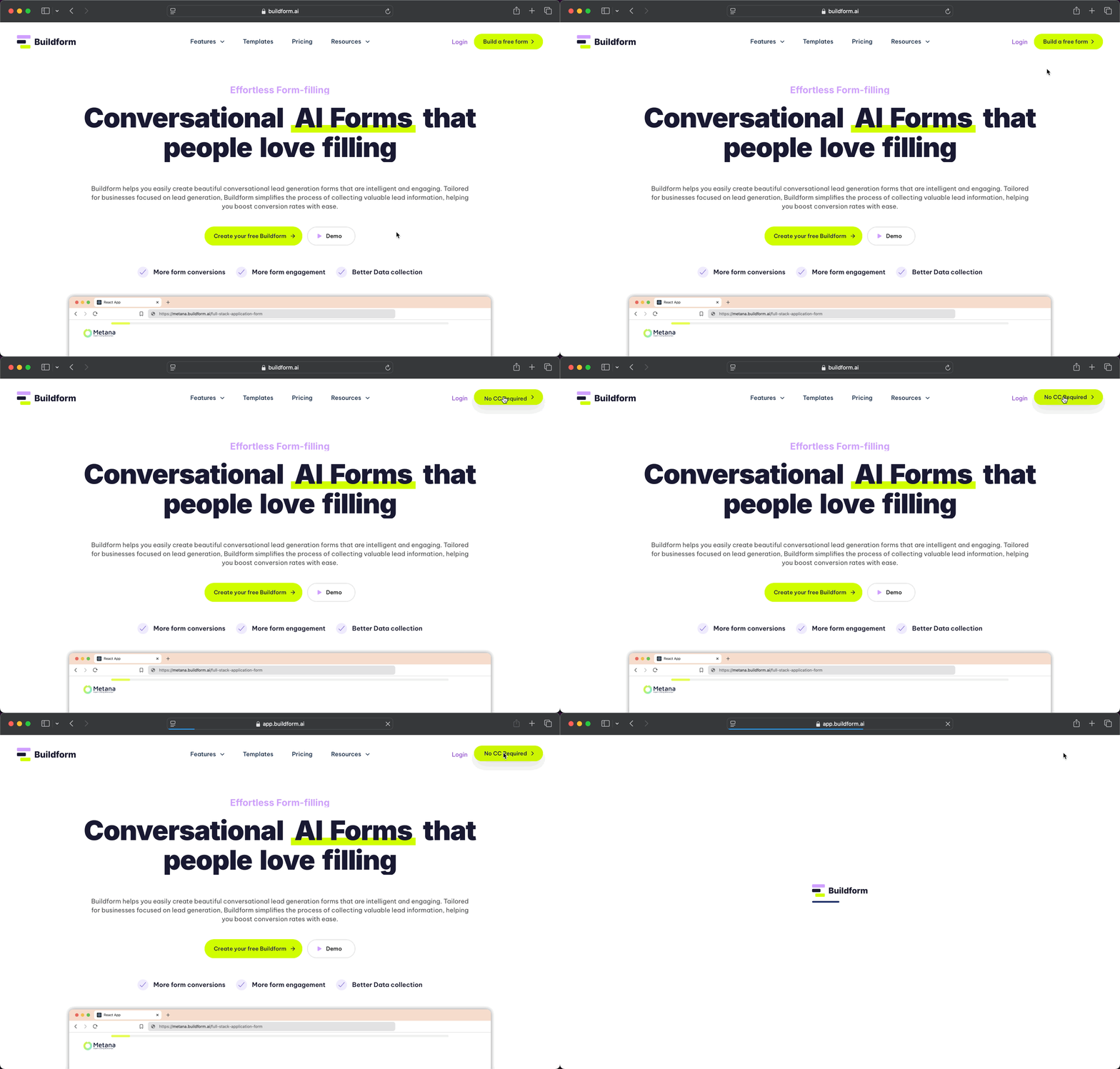
Step 02 - Signing up Method
On the sign-up page, select your preferred method to create your account. For a faster experience, you can also sign up using your Google account with just a click. Start building intelligent and engaging lead-generation forms in no time!
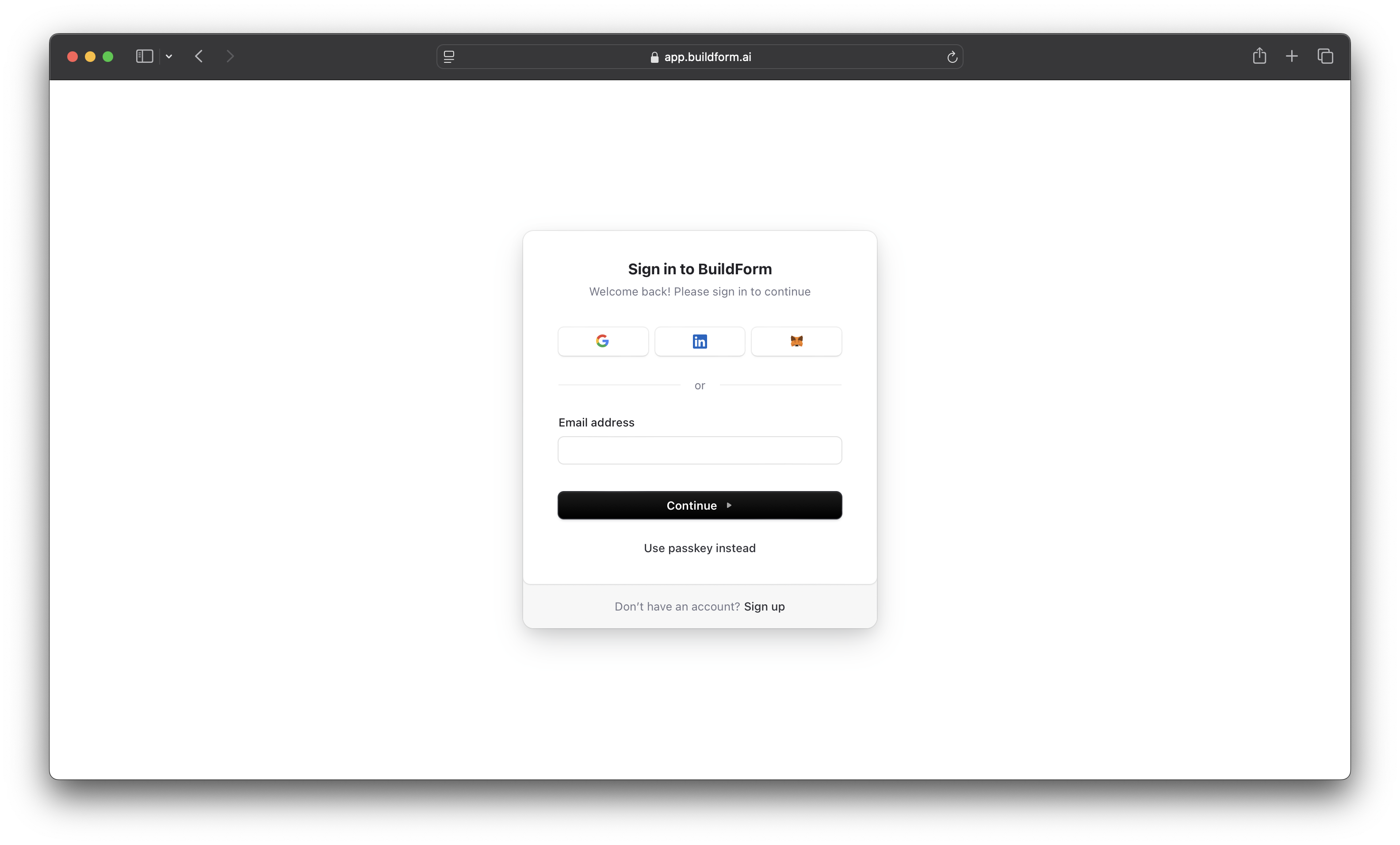
Step 03 - Creating Your First Form
Once you've completed the sign-up process, you'll be taken to your default workspace. To start building, simply click on the Create Form or New Form button and begin designing your form.
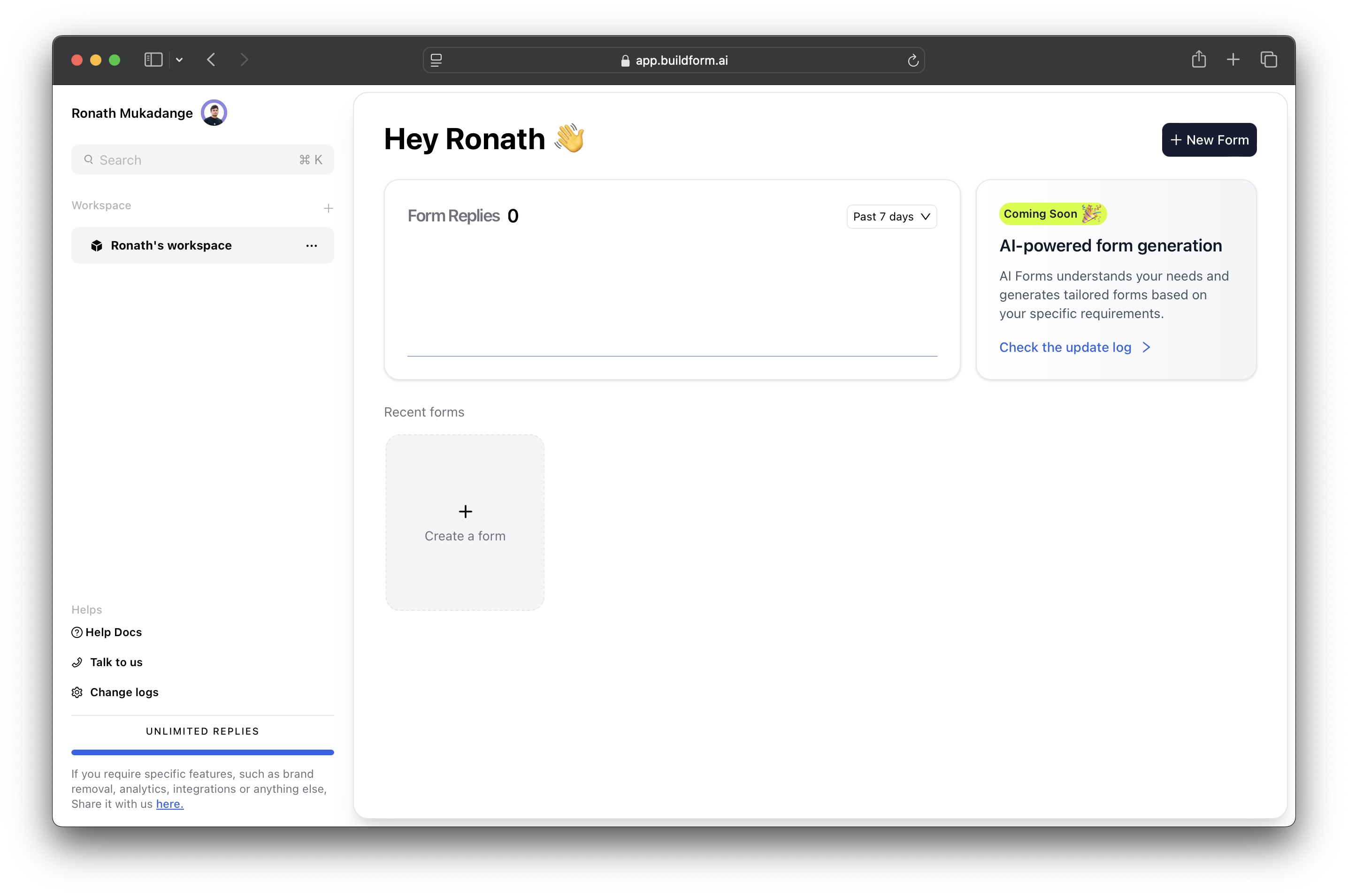
Step 04 - Choosing a Form Type
We offer two powerful form types to suit your needs. The first is a fully AI-driven conversational form, designed to create dynamic and engaging interactions with your users. The second is a standard form, enhanced with smart AI features, providing a more traditional structure while still benefiting from the AI.
BuildForm AI is coming soon 🎉
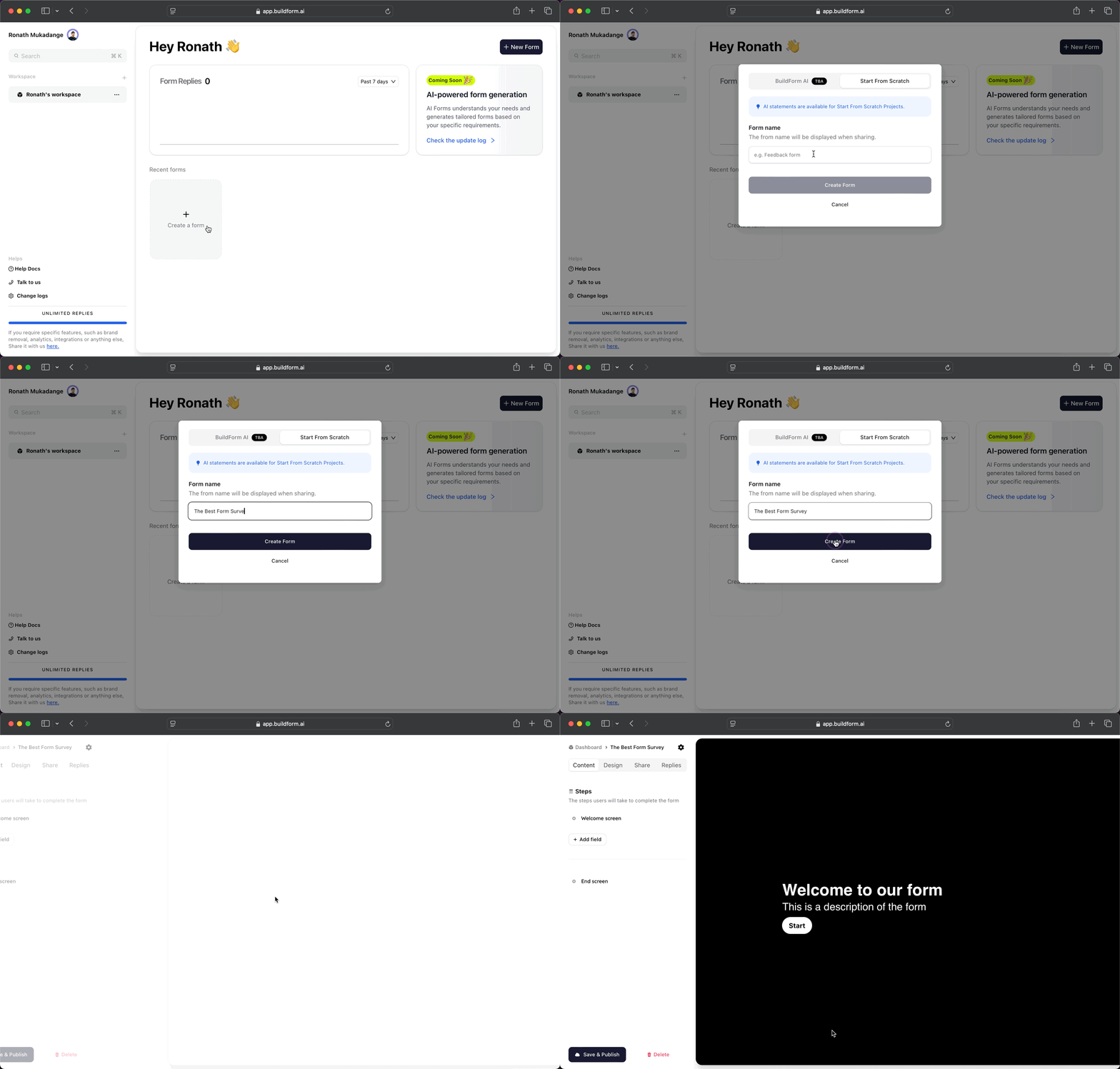
Step 05 - Choosing Form Fields
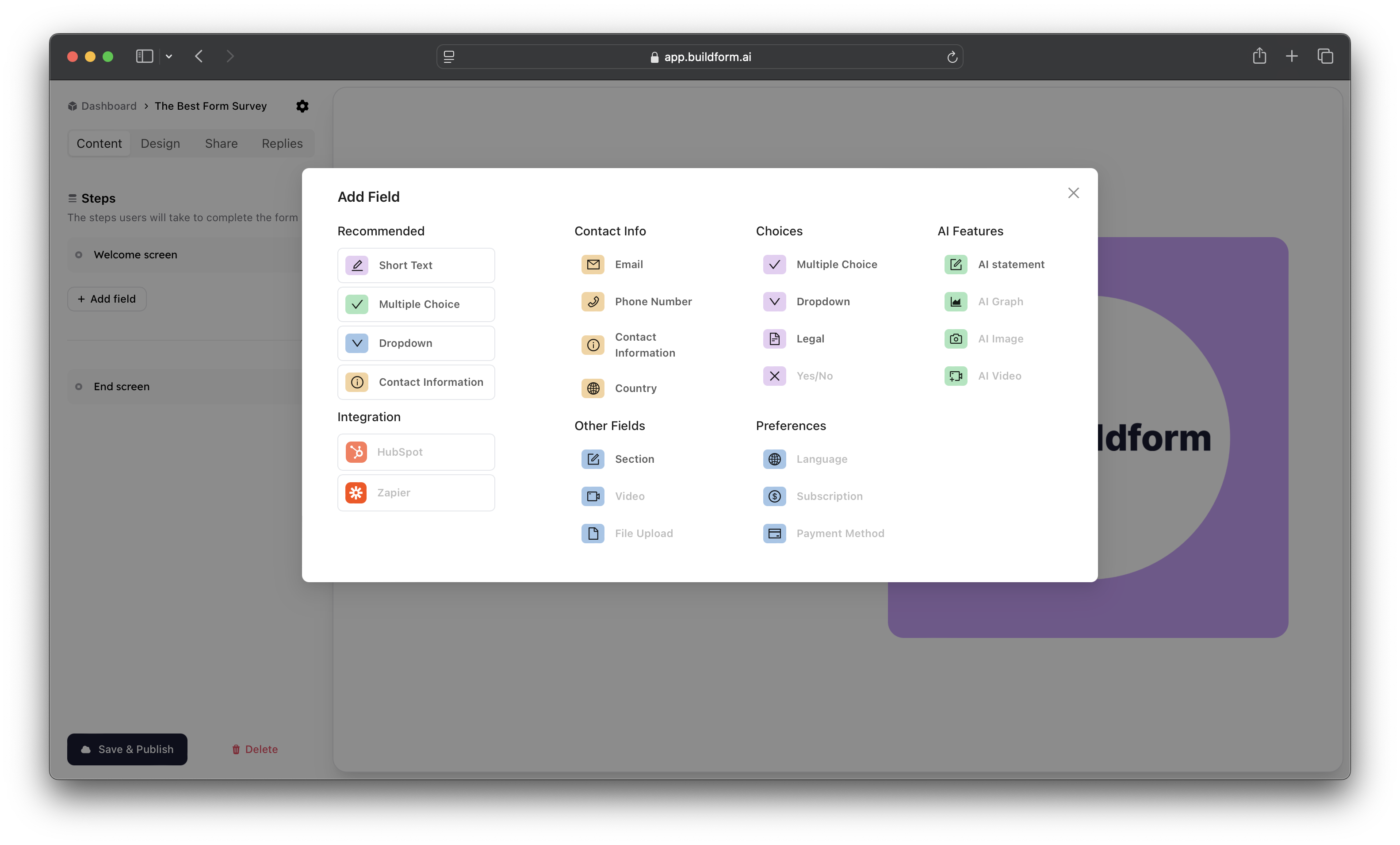
To select your form fields, simply click the Add Field button on the left side of the panel. This will open a popup with a variety of field options to choose from, allowing you to customise your form based on your specific needs.
Changing Form Name
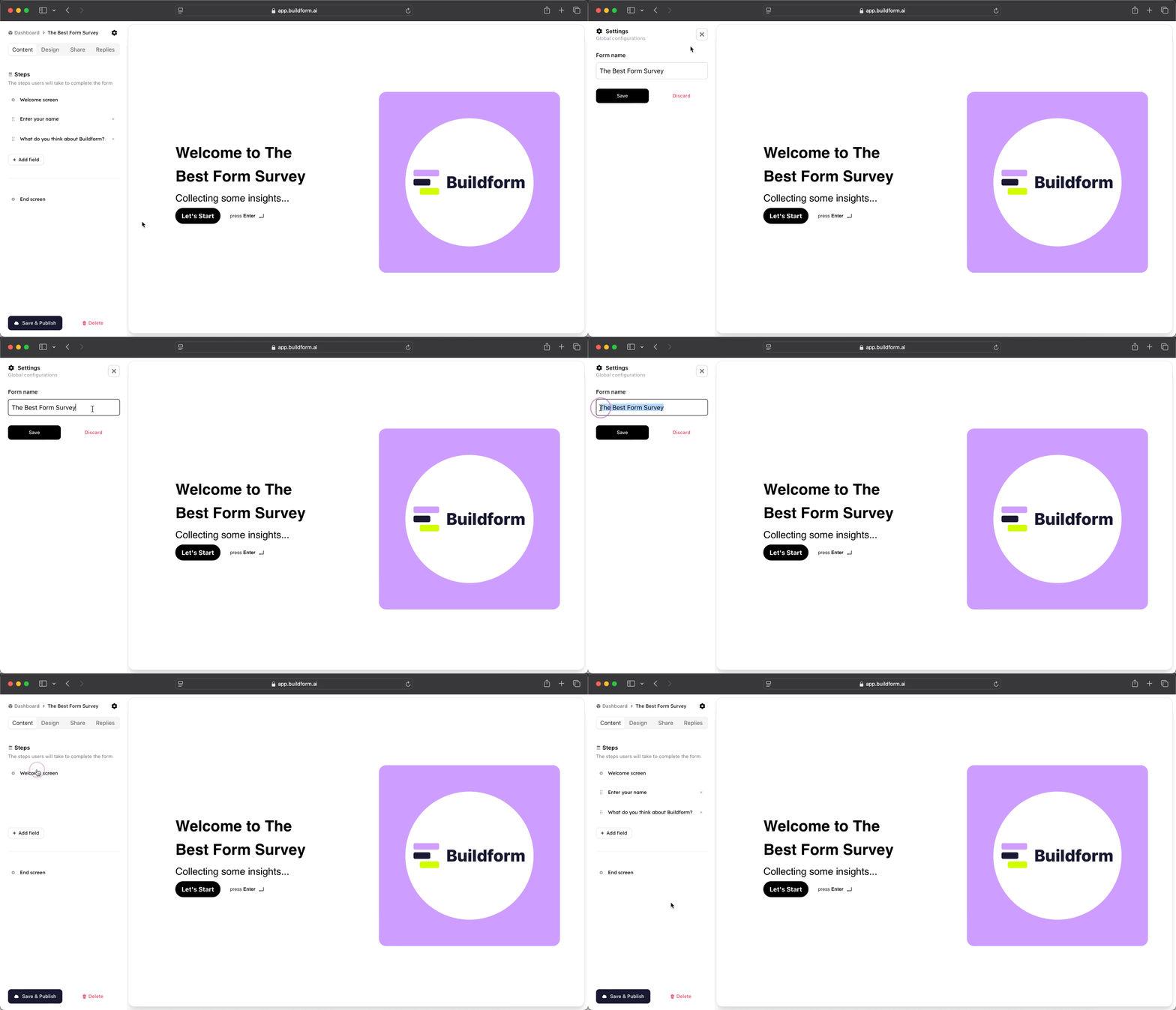
Changing a form name is straightforward. Simply click on the gear icon next to the form name in the top left corner, and you can easily update the name to fit your needs.
Was this helpful?
Still need help? Share an idea